Free PDF merging guide
Free How to Merge PDF Files in the Correct Order
Merging PDFs is easy; producing a combined document that reads correctly requires a short review of file order, page order, duplicates and orientation. This free ToolsFA guide is designed to help you choose the right workflow before working on the file.
Free practical guidance from ToolsFA
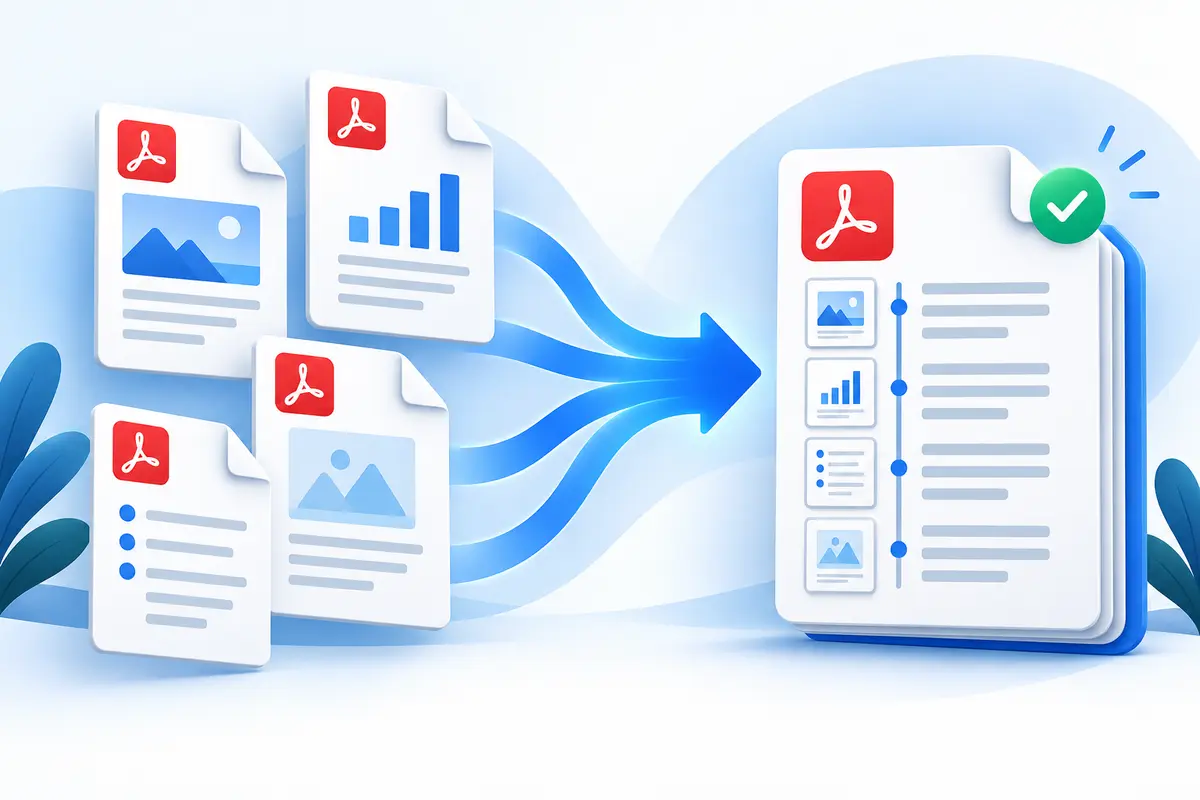
A simple order for common combined PDFs
| Combined document | Suggested sequence | Final check |
|---|---|---|
| Job application | Cover letter, resume, certificates | Name and contact details are current |
| Project submission | Cover, report, drawings, appendices | Table of contents matches page order |
| Expense package | Summary, receipts by date | No duplicate or missing receipt |
| Legal or administrative record | Main form, exhibits, supporting evidence | Exhibit labels and page numbers align |
| Course material | Title page, lessons, exercises, answers | Orientation and section sequence are consistent |
On smaller screens, swipe horizontally to see every column.
What the ToolsFA tool includes
- Up to 30 PDF files per merge, with each file limited to 150 MB and the combined selection limited to 400 MB
- File reordering plus page-level reordering, removal and restoration inside each readable PDF
- Direct page copying in your browser without uploading the selected PDFs to ToolsFA or deliberately recompressing their page content
What it does not include
- Decrypting or merging a password-protected PDF
- Automatic removal of duplicates, correction of sideways pages, or reconciliation of printed page numbers
- A promise that bookmarks, links, forms, signatures or other document-level features from separate source files will combine exactly as intended
Step by step
How to use the ToolsFA tool
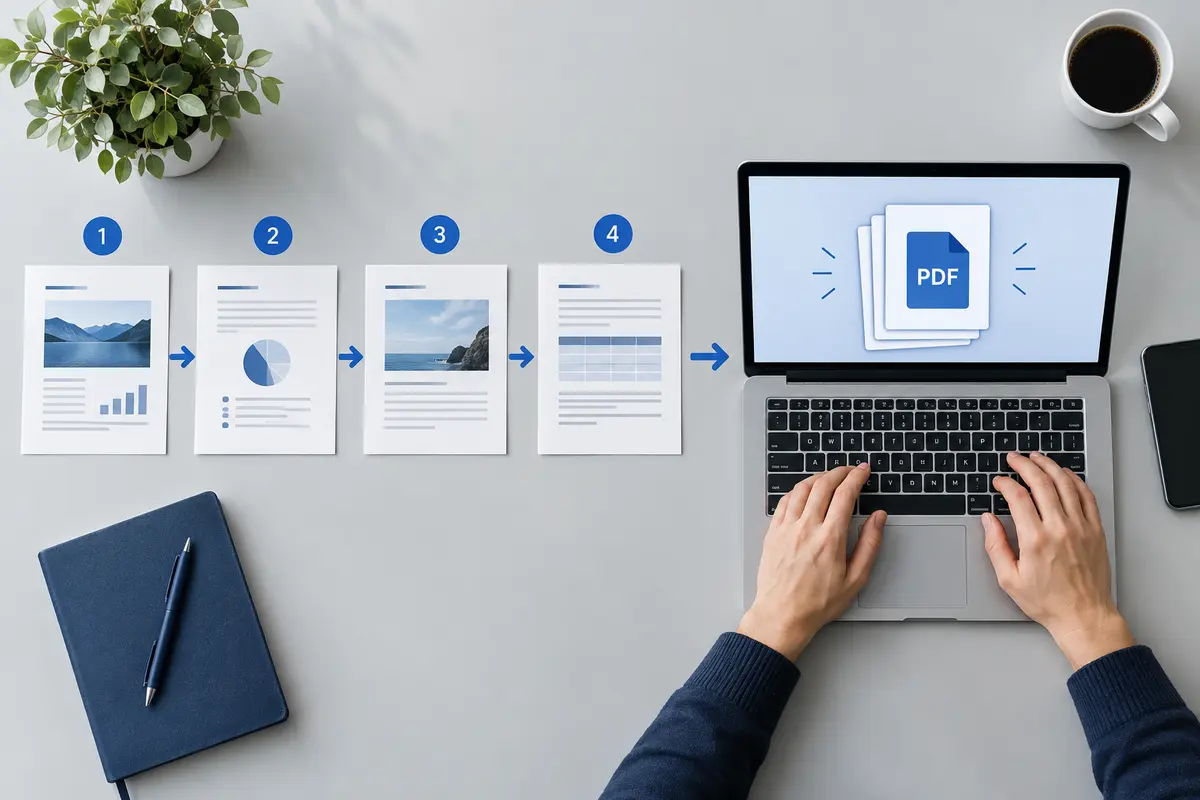
- 1Open the PDF merger and add the source files. Wait until each one is marked ready; encrypted or unreadable files must be replaced before they can be included.
- 2Move the files into their intended top-to-bottom order. For a multi-page file, open its page controls to rearrange pages or leave out pages you do not need.
- 3Compare the planned page count with the ready-page total, choose a descriptive output filename, and run the merge.
- 4Download the combined PDF and review the cover, every section transition, the final page, printed page numbers, orientation and any links or forms you expect to use.
Worked example
Worked example: a 17-page application package
Assume the final package should contain a two-page cover letter, a four-page application, a three-page resume and eight certificate pages: 17 pages total. Add the four source PDFs, arrange them in that order, and open the certificate file's page controls if its scans are not already in the required sequence.
Before merging, confirm that the ready-page total is 17 and that no source is marked encrypted or invalid. After download, verify pages 2–3 and 6–7 where files join, then check page 17. If the result must also fit an upload limit, review this full-quality merged copy first and compress a separate copy afterward.
Plan the sequence before uploading
Place files in a temporary folder and give them clear names if the current names are confusing. A numbered prefix such as 01, 02 and 03 can help you understand the intended sequence before any pages are combined.
Decide whether the final PDF needs a cover page, contents page or separator sheets. Adding these decisions early prevents repeated merging and downloading.
Review pages inside each file
A source PDF may already contain blank pages, duplicate scans or pages in the wrong orientation. Expand its page list, remove anything unnecessary and move individual pages into the correct position.
Do not assume that page numbers printed on the document match the internal PDF order. Inserts and scanned attachments often create gaps or repeated numbers.
- Check the first and last page of every source file.
- Remove accidental blank pages and duplicates.
- Keep attachments beside the section that refers to them.
- Confirm portrait and landscape pages are intentional.
Does merging reduce quality?
A merge that copies original PDF pages should not rasterize them or reduce image resolution. Selectable text and embedded page content normally remain as they were in the source files.
The combined file may be larger because it contains all source pages. If a size limit applies, finish the merge and review it first, then create a separate compressed copy.
Check the final document
Open the download and move through every page. Confirm the cover, section transitions, attachments and final page. Search for a known phrase when searchable text matters, and test bookmarks or links if the source files used them.
Keep the individual source PDFs until the recipient accepts the combined file. They make corrections much easier if one section must be replaced later.
Questions and answers
Frequently asked questions
Does merging lower the quality of the pages?
The current ToolsFA merger copies source PDF pages into a new file rather than rendering them as images, so it does not deliberately recompress page content. Still reopen the result and verify document-level features such as links, forms, bookmarks and signatures.
Can I merge only selected pages?
Yes. Open the page controls under a readable multi-page file, reorder the pages you want and remove pages you do not need. Removed pages can be restored before you create the PDF.
Why was one PDF left out?
The tool excludes files it cannot read and password-protected PDFs it cannot decrypt. Open the file through an authorized workflow, save a readable unprotected copy if permitted, and add that copy instead.
Next useful steps
Related PDF guides
Continue with the next task in your document workflow, whether that is organizing pages, filling a form, reducing file size or preparing the final copy to share.