Free PDF compression guide
Free How to Compress a PDF Without Losing Readability
PDF compression is a tradeoff between file size and page detail. The right setting depends on whether the document contains photos, scans, small text, diagrams or mostly digital text. This free ToolsFA guide is designed to help you choose the right workflow before working on the file.
Free practical guidance from ToolsFA
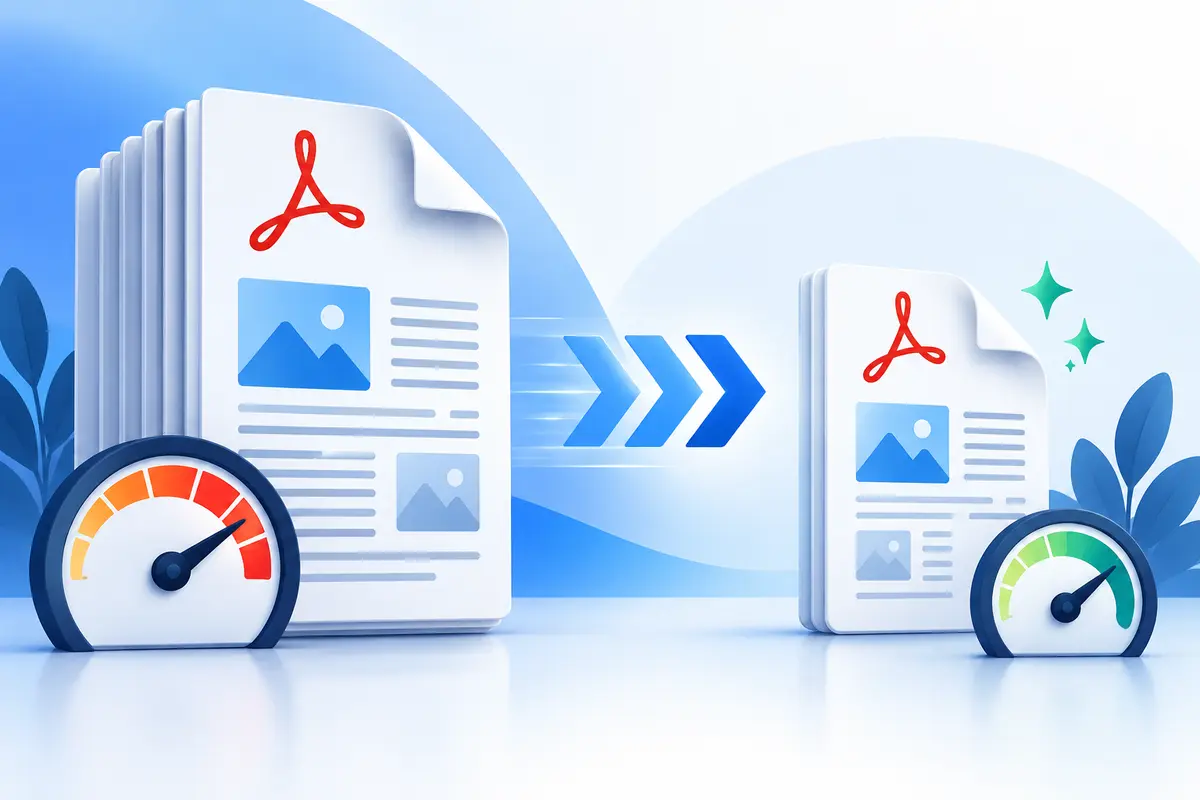
Suggested first compression check by document type
| Document type | Main risk | What to inspect |
|---|---|---|
| Photo portfolio | Visible JPEG artifacts | Faces, gradients and detailed textures |
| Scanned forms | Soft or broken small text | Fine print, checkboxes and signatures |
| Technical drawing | Thin lines disappear | Dimensions, legends and line weights |
| Text report | Flattened links or selectable text | Search, links and copy behavior |
| Application upload | Missing exact size limit | Final bytes and every required page |
On smaller screens, swipe horizontally to see every column.
What the ToolsFA tool includes
- Percentage reduction from 5% to 90%, or a target size range entered in KB or MB
- A closest-result fallback when the requested range cannot be reached exactly
- Browser-based processing on your device for one PDF up to 150 MB, without uploading it to ToolsFA
What it does not include
- A guarantee that the final byte count will land inside every requested range
- Preservation of selectable text, hyperlinks, fillable fields, layers, annotations or cryptographic signatures after pages are flattened
- Lossless optimization of the original PDF objects; the current tool rebuilds visible pages as JPEG images
Step by step
How to use the ToolsFA tool
- 1Open the PDF compressor and select one PDF from your device. Confirm that the displayed original size matches the file you intended to use.
- 2Choose percentage mode for a general reduction, or choose size-range mode and enter the minimum and maximum accepted size in KB or MB.
- 3Run compression. The tool tests image resolution and quality settings, then reports the actual file size and whether the range was reached.
- 4Download the new copy, reopen it in a PDF viewer and inspect every page—especially fine print, diagrams, forms, links and signatures—before submitting it.
Worked example
Worked example: a 12 MB scan with a 5 MB upload limit
Assume a portal accepts files no larger than 5 MB and the original is a 12 MB, 20-page scanned form. Choose size-range mode and enter a practical band such as 4–5 MB rather than requesting exactly 5.00 MB. The tool will try several image settings and return a match or the closest version it can create in the browser.
If the download is 4.7 MB, verify the actual file size outside the tool, then inspect the smallest printed instructions, checkboxes, handwritten entries and signatures at 100% zoom. Because each page is flattened, do not use this copy when selectable text, live form fields, working links or signature validation must remain available; keep the 12 MB original as the authoritative copy.
Why PDF file sizes vary
Two PDFs with the same page count can have very different sizes. High-resolution scans and photographs use far more storage than ordinary text and vector shapes. Embedded fonts, duplicate images and editing history can also increase size.
A file that is already optimized may have little room to shrink. Rebuilding pages at lower image quality can reduce it further, but that may flatten searchable text, links, forms and annotations.
Choose a realistic target
Use a target-size range when a website or email service has a clear limit. Otherwise, begin with a moderate percentage reduction rather than immediately choosing the strongest setting.
A target is not always reachable without unacceptable quality loss. If the source contains dense scans or large photographs, compare more than one result and keep the clearest version that satisfies the upload requirement.
- Check the final size rather than the requested target alone.
- Zoom into small text and thin lines.
- Confirm that all pages are present and upright.
- Keep the original PDF unchanged.
What quality loss looks like
Over-compressed text may look fuzzy, broken or surrounded by halos. Photographs may show blocks in smooth areas, while diagrams may lose fine lines or small labels. These problems are easier to see at 100% or 200% zoom than in a thumbnail.
Print a test page when the file will be printed. A document that looks acceptable on a phone can still produce weak fine text on paper.
When compression is the wrong tool
If the file is large because it contains unnecessary pages, remove or split those pages before compressing. If it contains several separate documents, consider reorganizing or merging only the pages the recipient actually needs.
For forms, accessibility-tagged documents or digitally signed PDFs, verify whether flattening would remove required interactive or trust features before proceeding.
Important: Compression should create a new copy. Never replace your only original until the result has been reviewed.
Questions and answers
Frequently asked questions
Can I compress a PDF to an exact size?
You can enter a minimum and maximum in KB or MB. PDF content compresses differently, so ToolsFA reports whether it reached that range and otherwise returns the closest result it produced; an exact byte count is not guaranteed.
Will text, links and form fields still work?
Not necessarily. The current compressor rebuilds each page as an optimized JPEG image. The visible layout remains, but selectable text, hyperlinks, form fields, layers, annotations and digital-signature validation may be flattened or lost.
Does ToolsFA upload the PDF?
No. The selected PDF is opened and compressed in your browser on your device. A large or image-heavy file can therefore take longer or use substantial device memory.
Next useful steps
Related PDF guides
Continue with the next task in your document workflow, whether that is organizing pages, filling a form, reducing file size or preparing the final copy to share.