Free PDF to Word guide
Free How to Convert PDF to Word Without Losing Formatting
A PDF stores a finished page, while Word stores editable content that can reflow. The practical goal is to keep the document recognizable while accepting that complex layouts need review after conversion. This free ToolsFA guide is designed to help you choose the right workflow before working on the file.
Free practical guidance from ToolsFA
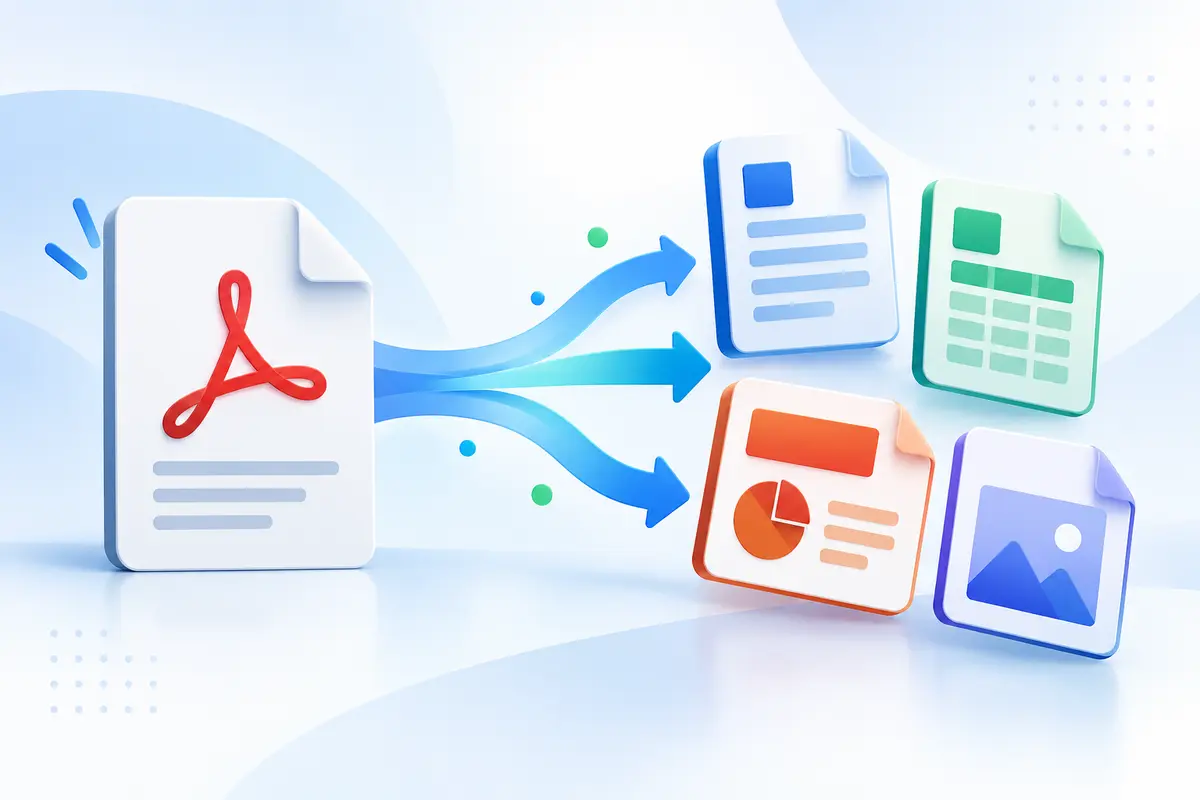
Which PDF-to-Word method should you choose?
| Document type | Best starting mode | Check after conversion |
|---|---|---|
| Certificate or designed one-page form | Keep PDF as visual reference | Use a specialist fixed-layout workflow if exact artwork is required |
| Resume with columns | Word export + manual rebuild | Column alignment, bullets and section rules |
| Simple report or letter | ToolsFA Word export | Paragraph order, headings and page breaks |
| Scanned document | English OCR PDF first | Search, names, numbers, punctuation and reading order |
| Table-heavy statement | Compare Word and Excel exports | Rows, columns and which format needs less rebuilding |
On smaller screens, swipe horizontally to see every column.
What the ToolsFA tool includes
- Browser-based processing on your device, without uploading the selected PDF to ToolsFA
- All pages or a custom page range
- Selectable PDF text exported to an editable DOCX and separated by source page
What it does not include
- Pixel-perfect reconstruction of columns, tables, text boxes, embedded fonts or page artwork
- Reliable Word text from an image-only scan; use the separate English OCR output first when searchability is the immediate goal
- A guarantee that every paragraph, character or reading-order decision is correct
Step by step
How to use the ToolsFA tool
- 1Open the PDF converter and select the original PDF from your device.
- 2Choose Word (DOCX), then select all pages or enter the page range you actually need.
- 3Run the conversion and download the DOCX. The tool uses selectable text already stored in the PDF.
- 4Open the DOCX beside the original PDF and compare headings, lists, tables, columns, images and page breaks before editing.
Worked example
Worked example: a 12-page text report
Assume the source is a 12-page, single-column report with selectable text, section headings, page numbers, two simple tables and one chart. Convert all 12 pages to DOCX. Expect the wording to be reusable and separated by source page, but do not assume the exact fonts, table grid or chart placement will survive.
Check pages 1, 6 and 12 first, then inspect both tables and the chart. If the body text is sound but the tables need major repair, keep the original PDF beside Word and rebuild only those tables. For a two-column brochure or designed certificate, plan for substantially more manual layout work or use a specialist fixed-layout workflow.
Why a PDF does not behave like a Word file
PDF pages are positioned like finished printouts. A heading may be stored at a precise coordinate, a logo may be a separate image, and a table may consist of lines plus individually placed words. Word normally expects paragraphs, tables and sections that can move when text changes.
That difference explains why a converter cannot promise both perfect visual matching and completely natural reflow for every file. ToolsFA's Word export takes the selectable text already stored in the PDF and arranges it by source page. That makes the wording editable, but it does not preserve the page as fixed artwork or guarantee exact positioning.
Check fonts, colors and page artwork
Check more than the words. Compare font size, weight, color, alignment, bullets, borders, background banners, logos and signatures. If a required font is not installed on the computer, Word may substitute another font and slightly change line length.
After conversion, click several text areas to confirm they are editable and compare the result with the original. If exact artwork matters, keep the PDF as the visual reference; the DOCX is the editable working copy, not a pixel-perfect duplicate.
- Keep the original PDF beside the Word file while reviewing.
- Check every page at 100% zoom.
- Check whether font colors, bullets and spacing need correction.
- Save a new copy before making major layout changes.
When OCR is necessary
If you cannot select words in the PDF, the page may be a scan. OCR estimates letters from pixels before Word content can be created. Clear, straight, high-resolution scans usually perform better than blurred photographs, handwriting or pages with strong shadows.
OCR output must be proofread. Pay special attention to names, dates, decimal points, account numbers, accented characters and narrow table columns.
Important: OCR creates a searchable starting point; it does not certify that every recognized character is correct.
A practical quality-check routine
First compare the top and bottom of every page, because headers, footers and page numbers are easy to miss. Then review headings, lists, tables and image placement. Finally, click representative text from different areas and make a small edit to confirm that it behaves as expected.
If a complex document still needs substantial cleanup, consider keeping the visually matched version for reference and using the editable-text version only for copying or rewriting content.
Questions and answers
Frequently asked questions
Will the Word file look exactly like the PDF?
Not for every document. ToolsFA extracts selectable text into an editable DOCX organized by page; complex columns, tables, fonts, graphics and exact positioning may require manual cleanup.
What if I cannot select text in the PDF?
The file is probably image-only or has an unusable text layer. Use the converter's English OCR PDF option to create a searchable copy, verify it, and then decide whether you need to reuse the recognized text.
Does the conversion happen on ToolsFA's server?
No. The current converter processes the selected PDF in your browser on your device. Large or image-heavy files can therefore use substantial device memory.
Next useful steps
Related PDF guides
Continue with the next task in your document workflow, whether that is organizing pages, filling a form, reducing file size or preparing the final copy to share.