Free PDF assembly guide
Free How to Combine Selected Pages From Multiple PDFs
You often need only a few pages from each source PDF: a form, a receipt, a certificate or an appendix. Building a focused combined PDF saves the recipient from sorting through unrelated pages. This free ToolsFA guide is designed to help you choose the right workflow before working on the file.
Free practical guidance from ToolsFA
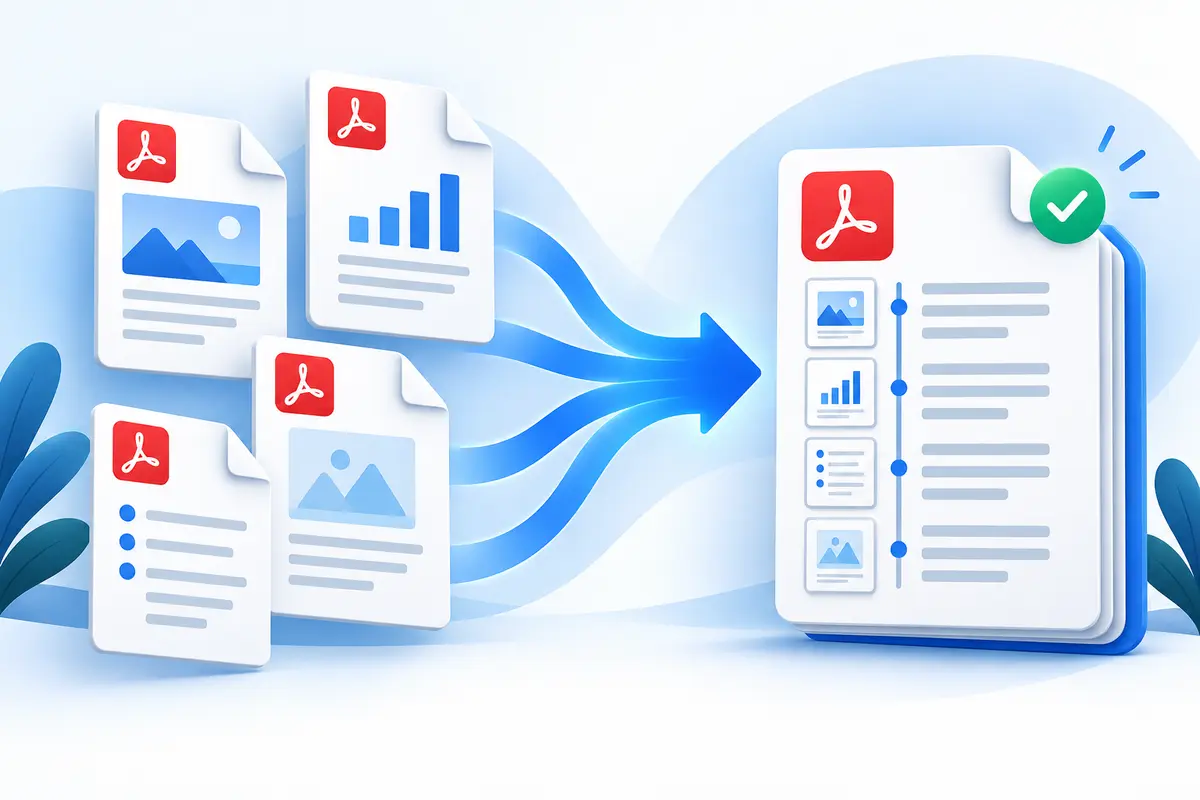
Examples of selected-page PDF packages
| Purpose | Useful pages | Suggested order |
|---|---|---|
| Application | Form, resume, qualification pages | Main form, resume, supporting certificates |
| Expense claim | Summary and relevant receipts | Summary, receipts in date order |
| Project submission | Report, drawing sheets, appendix pages | Report, drawings, appendices |
| Reference package | Key pages from several sources | Cover or index, sources in cited order |
| Reply to a request | Requested evidence only | Request reference, evidence, closing page |
On smaller screens, swipe horizontally to see every column.
Decide what the recipient actually needs
Read the request before adding files. A recipient may ask for specific pages, dates or supporting documents rather than every page you have. Sending only the relevant material reduces confusion and keeps the final PDF easier to review.
Keep source documents available while you work. If a page needs replacing or a missing attachment is discovered, you can rebuild the package without trying to edit a final-only copy.
Select and arrange pages deliberately
Add the PDF sources, expand their page lists and keep only the needed pages. Order the combined document as a reader would expect: start with the main request or cover page, then supporting documents in a logical sequence.
Avoid relying solely on printed page numbers. Several source files can each start at page 1, so use the page preview, filename and surrounding context to confirm what is being included.
- Put a document title or summary before its supporting pages.
- Keep receipts or evidence in a clear date or category order.
- Check whether both sides of a scan are needed.
- Remove accidental blank pages and duplicates before merging.
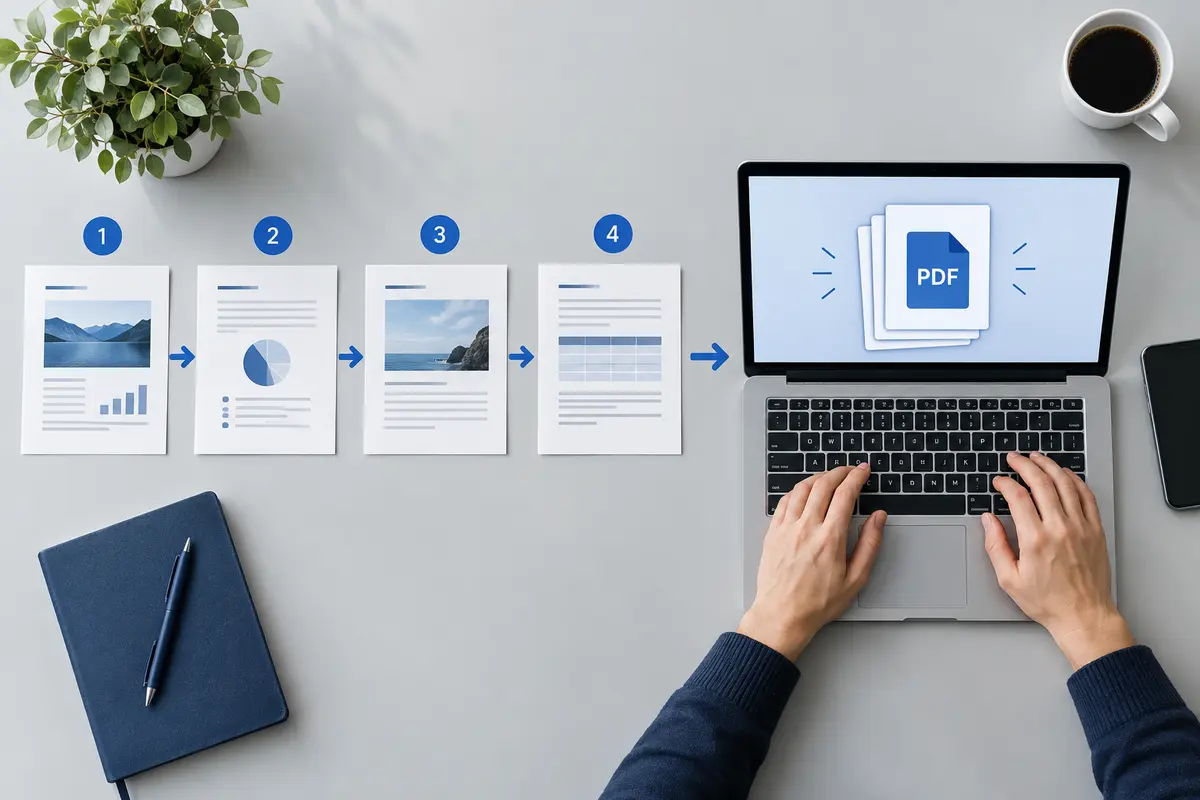
Use merge or page organization for the right task
Use Merge PDF when you are starting with several source files and want to select pages from each. Use the PDF Page Organizer when you have one working set and need to make detailed changes such as duplication, blank separators or rotation.
Both workflows create a new PDF. They do not intentionally convert pages into screenshots, so existing selectable text and page content are preserved unless the source itself has limitations.
Finish with a quality and size check
Open the merged PDF and inspect each transition between source documents. Confirm that pages are not missing, that landscape pages are upright and that the final page is the one you expect.
If the combined file is too large for delivery, create a separate compressed copy after this review. Keep the organized original so you can correct a page without starting again.
Important: If a document is password-protected, use an authorized application to remove the protection before adding it. The ToolsFA merger does not decrypt files.
Next useful steps
Related PDF guides
Continue with the next task in your document workflow, whether that is organizing pages, filling a form, reducing file size or preparing the final copy to share.