NewFree online PDF editor — no sign-up required
100% FreeWorks in your browserNo sign-up

Free Online PDF Editor

Add text, signatures, drawings, pictures, shapes and lines to your PDF. Detect text, delete annotations you add, cover unwanted content with whiteout, and download the edited file.

Your selected PDF is processed on your device and is not uploaded to ToolsFA.

Choose a PDF to start editing.

How to edit a PDF online for free

1. Choose your PDF

Upload a PDF from your phone or computer. The file opens locally in your browser.

2. Make your changes

Add text, draw, sign, insert a PNG or JPEG, add shapes and lines, or use whiteout to cover content.

3. Download the result

Review each page, then download a new PDF containing your edits.

What this PDF editor can do

Use the text tool with Arial, Times New Roman or Courier New and choose a font size. Mark up pages with freehand drawing, add a handwritten signature, place rectangles, circles and straight lines, or insert a PNG or JPEG. You can also copy text detected in a PDF that contains a selectable text layer.

Important limitation

Whiteout places an opaque white shape over visible content. It does not securely remove underlying text or metadata, so do not use it to redact sensitive information. For permanent redaction, use a dedicated redaction tool and verify the exported document.

PDF editing guide

Edit a PDF online without installing software

A PDF is useful because its layout stays consistent across devices, but that fixed layout can make small changes inconvenient. The ToolsFA editor is designed for practical updates such as completing a form, placing a signature, adding a note, inserting a logo or photo, and marking up a document for review. It works directly in a modern browser, so there is no desktop program to install and no account setup before you begin.
Add text and make visible corrections

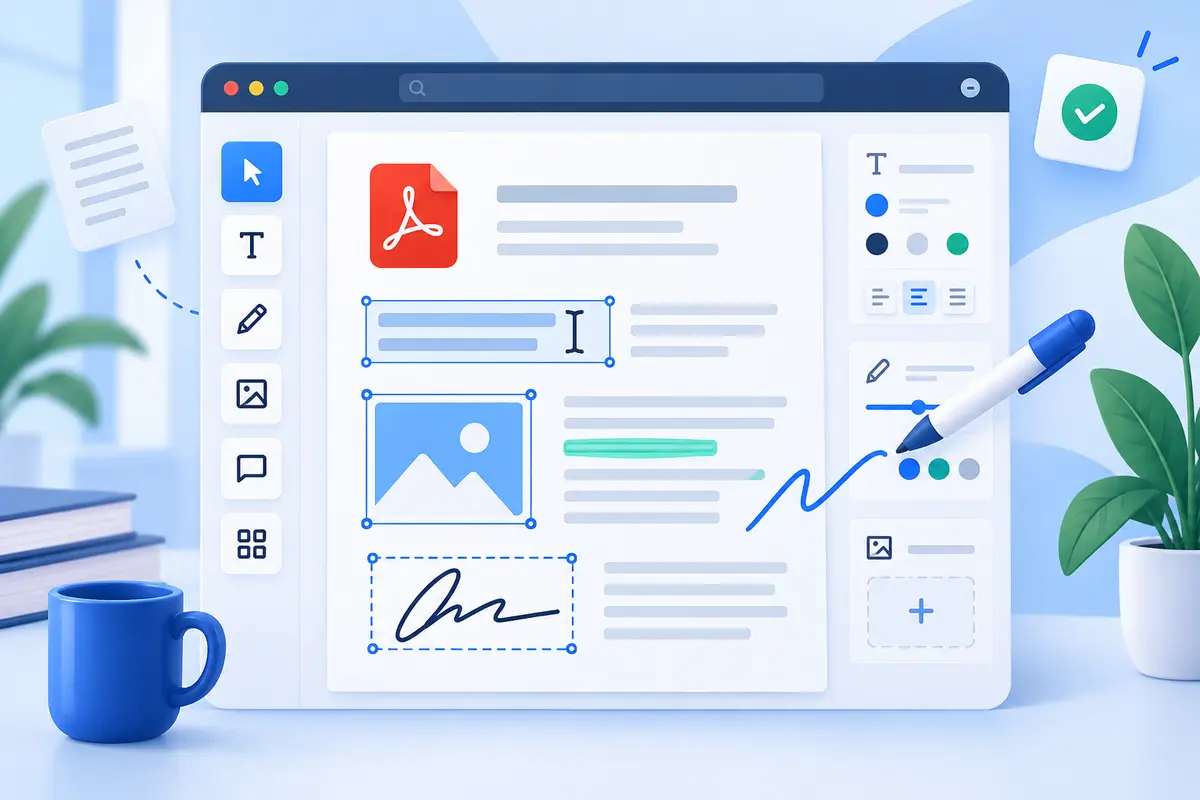
Choose Add text, click the page, and type inside the text box. Arial is selected by default, and you can choose a different font, size and colour before placing another box. To replace wording already on the page, choose Edit existing text and click a highlighted text region. The tool creates an editable visual replacement that you can move and resize. It does not rewrite or securely remove the original PDF text layer.

Draw, sign and erase added strokes

The Draw tool is useful for notes, arrows and freehand marks. Sign uses a thicker, smoother stroke for a handwritten signature. Both work with a mouse, trackpad, touchscreen or stylus. If a stroke is not right, drag the Stroke eraser across it, press Delete after selecting it, or use Undo. Redo restores a change that was undone.

Insert pictures, shapes and lines

Add a PNG or JPEG when a document needs a logo, stamp, photograph or scanned signature. Rectangle, Circle and Line tools can highlight an area or organize a simple markup. After adding an object, switch to Select, click it, and drag the handles. Images and shapes can be stretched horizontally or vertically when you need a different size or aspect ratio.

Find text already stored in the PDF

The Detected text panel reads the selectable text layer on the current page and lets you copy it. This is helpful when you need wording from a document without retyping it. Image-only scans may not return text because text detection is different from OCR. The original page still remains visible and can be annotated normally.
Privacy, browser support and file safety

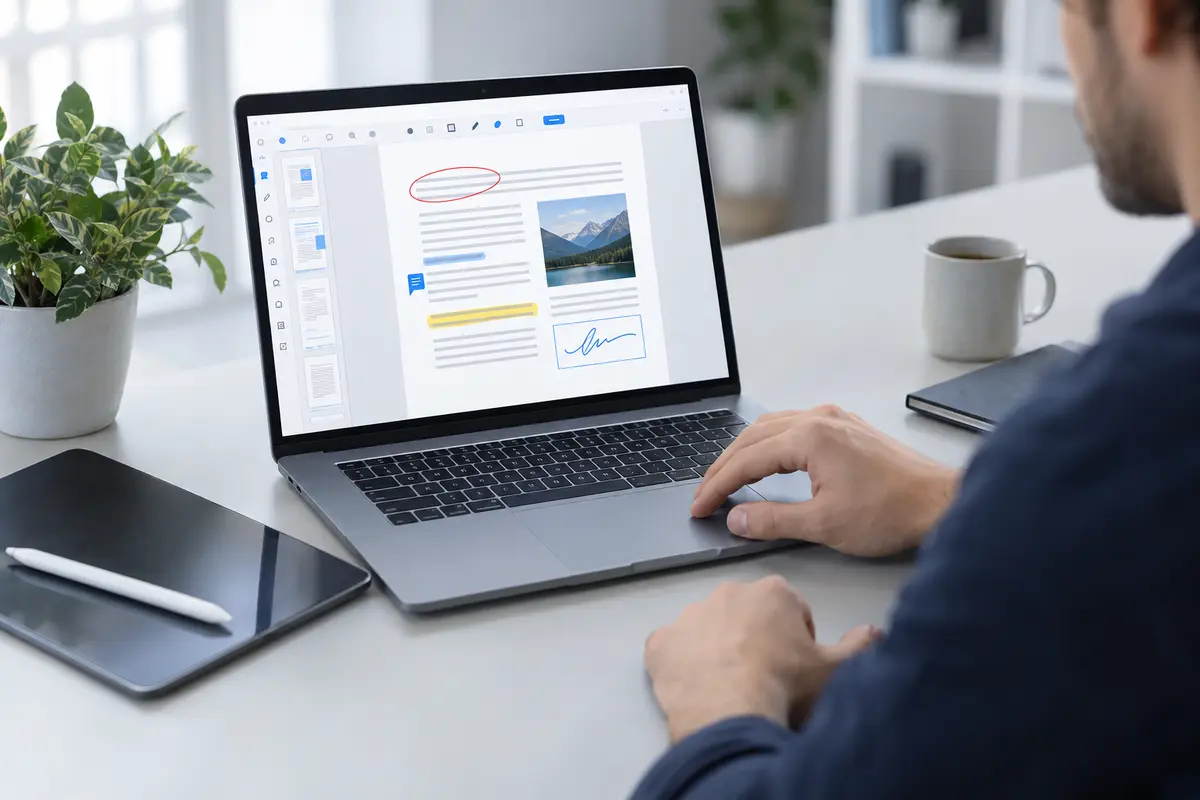
Your selected PDF and added images are processed in the browser on your device; they are not uploaded to ToolsFA. Keep the original document until you have opened and reviewed the downloaded copy. Very large or complex PDFs can use substantial device memory, particularly on older phones. Password-protected, damaged or unsupported files may not open.

Questions and answers

Frequently asked questions about editing PDFs

Is the ToolsFA PDF editor free?

Yes. You can open, edit and download a PDF without paying or creating an account.

Does ToolsFA upload or store my PDF?

No. The PDF is opened and processed in your browser on your device. ToolsFA does not receive or store the file you select.

Can I edit the existing words inside a PDF?

When the PDF contains a selectable text layer, choose Edit existing text and click a highlighted text region. The editor covers that region and creates an editable replacement box with the detected wording. This changes how the downloaded page looks, but it does not rewrite or securely remove the original PDF text layer.

How do I add and move text?

Choose Add text, click the page, and type inside the new text box. Select the box and drag the blue move handle to reposition it. Drag the lower blue handle to change the box size.

How do I sign a PDF?

Choose Sign and draw your signature with a mouse, trackpad, stylus or finger. Switch to Select to move or resize the signature before downloading the PDF.

Can I resize an image or shape after adding it?

Yes. Choose Select, click the image, shape, line or text box, and drag the blue corner handle. Width and height can be changed independently.

How do I remove something I added?

Select the added item and press Delete or Backspace, or use Delete selected in the toolbar. Stroke eraser removes an added drawing or signature stroke that you touch. Undo and Redo let you step backward or forward through changes.

Does text detection work on scanned PDFs?

Only when the PDF already contains a readable text layer. A scan made entirely from page images may show no detected text because this version does not perform optical character recognition (OCR).

Is whiteout the same as permanent redaction?

No. Whiteout only places a visible white shape over content. It may leave underlying text or metadata in the file, so it must not be used for securely removing confidential information.

Can I open a password-protected PDF?

Some protected PDFs cannot be opened or edited. Remove the password using an authorized copy of the document before using this editor.

Can I edit a PDF on my phone?

Yes. The editor supports touch controls on modern mobile browsers, although a larger screen can be easier for detailed placement and resizing.