Free PDF file size guide
Free How to Make a PDF Small Enough to Email or Upload
An email attachment or portal upload can reject an otherwise correct PDF simply because it is too large. The goal is not to make the file as tiny as possible—it is to meet the limit while keeping the document usable. This free ToolsFA guide is designed to help you choose the right workflow before working on the file.
Free practical guidance from ToolsFA
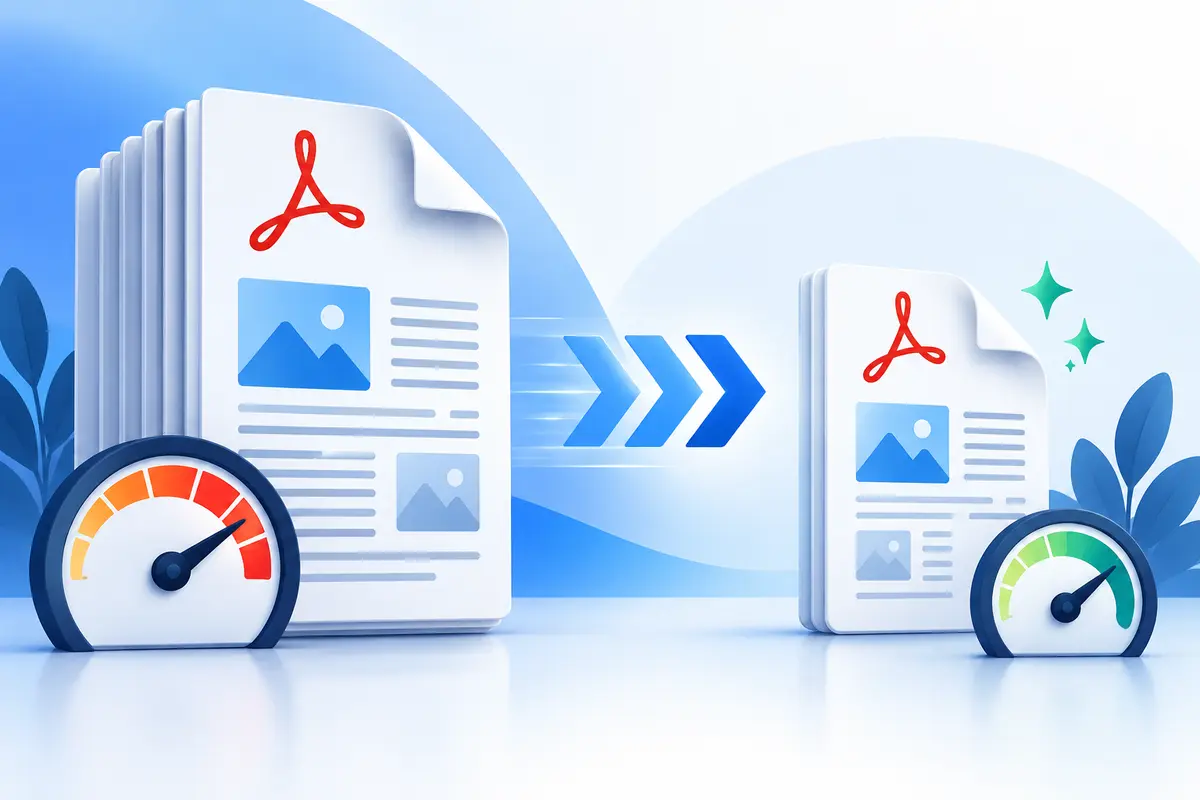
Ways to reduce a PDF before an email or portal upload
| Approach | Best for | Tradeoff to check |
|---|---|---|
| Remove unneeded pages | Extra cover sheets, blank scans and duplicates | Required evidence or appendices are not removed |
| Compress a copy | Photo-heavy scans and large image PDFs | Small text, photographs and line drawings remain clear |
| Split into allowed parts | A recipient accepts multiple files | File names and part order are obvious |
| Export a fresh digital PDF | A Word or spreadsheet source is available | Formatting and accessibility remain correct |
| Use the portal's alternative route | The service provides secure document upload | Follow the recipient's stated process |
On smaller screens, swipe horizontally to see every column.
Start with the exact requirement
Check whether the limit applies to one file, all files together, or the entire email. Leave a little room below a strict limit because email systems can add encoding overhead to attachments.
Also check accepted file types and whether the recipient asks for a single combined PDF. A small file that does not follow the stated submission requirement can still be rejected.
Reduce size in the right order
First remove pages that are genuinely unnecessary. Then organize the surviving pages into their final order. Once the document structure is correct, make a compressed copy for the email or portal.
This sequence matters because repeated compression can degrade photographs and scans. Work from the best available original and create one reviewed delivery copy instead of repeatedly shrinking the same file.
- Keep the original PDF unchanged.
- Choose moderate compression before stronger compression.
- Open the final PDF at 100% zoom.
- Check small text, signatures, stamps, diagrams and photographs.
What to do when the file is still too large
If a reasonable compressed copy remains too large, find the pages causing the size. Colour scans and full-page photographs often account for much more data than normal digital text. A clearer rescan at a sensible resolution may help more than extreme compression.
When permitted, split the document into clearly named parts such as 'application-part-1-of-2.pdf' and 'application-part-2-of-2.pdf'. Do not split a file if the recipient explicitly requires one combined PDF.
Make the uploaded copy easy to identify
Use a descriptive file name, such as 'surname-application-supporting-documents.pdf', and avoid vague names like 'scan-final-final.pdf'. Verify the attachment or portal preview after uploading when one is available.
If the file includes pages from several documents, use the PDF organizer or merger before compressing so the recipient receives one clear, correctly ordered PDF.
Important: Never assume a smaller file is better. If essential fine print or a signature becomes unclear, use a less aggressive compression setting or another approved submission method.
Next useful steps
Related PDF guides
Continue with the next task in your document workflow, whether that is organizing pages, filling a form, reducing file size or preparing the final copy to share.